Publish App Configuration - Admin
Publishing deploys changes to an app configuration to the users. Every publish creates a new version number. Users who have already run the configuration on their computer are offered the new version as an update. What users see is described in Update App Configurations.
Publishing requires a Published Versions Path in the settings. Only the version information is stored there, not the configuration files themselves.
Deployed
To deploy a configuration, turn on Deployed when editing the configuration. The setting is saved with the configuration.
Deployed configurations are marked with a badge in the Run App Configuration overview. The badge is visible to all users.

If Deployed is turned off again, the configuration is no longer offered as an update.
Publish
As soon as Deployed is turned on, the Publish button appears next to it. Publishing is only possible once the configuration has been saved and has no unsaved changes, because the stored state is what gets published. Otherwise a hint next to the button explains why it is disabled.
The usual order is: edit the configuration, save it, publish it.
Publish app configuration
Publish opens the Publish app configuration dialog.
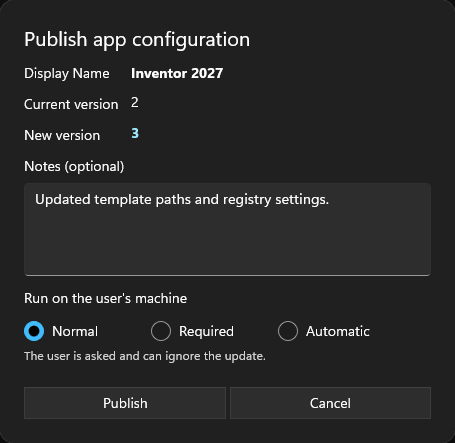
Current version and New version
Shows the version that is currently published and the version that will be created. At the first publish, the current version is shown as never published. Version numbers start at 1 and increase by one with every publish.
Notes (optional)
Describe what changed in this version. The notes are shown to the users in the update dialog.
Run on the user's machine
Defines how binding the update is for the users:
| Option | Behavior |
|---|---|
| Normal | The user is asked and can ignore the update. |
| Required | The user is asked, but cannot ignore the update. |
| Automatic | The update starts without asking as soon as the hub is open. |
The selection is stored with the configuration and is preselected at the next publish.
An automatic update runs without the user being asked. Only choose Automatic for configurations that have been tested and run reliably.
After a successful publish, the confirmation Configuration published as version appears with the new version number. Users get the update offered at the next start of the MuM.Access.Hub, or while it is running if Watch for new versions while running is turned on.
If the same configuration was published by someone else while the dialog was open, publishing is refused. Open the dialog again to publish the next version.